Orange Analytics has developed several Web and Mobile applications, covering a wide range of categories and levels of importance including service management, online order and delivery, project and team management, and training/education.
One project example is a comprehensive online food ordering, restaurant management and booking system. In this system, providing user-friendly, responsive forms and views for quick interactions is critical. In addition, in this system calendar and date/time selection components are very important.
From the start when we were designing and planning this system, we were very concerned about the lack of a comprehensive, flexible and modern Date/Time library. We needed advanced functions for dealing with multiple time zones and complex date/time calculations, also modern, responsive and user-friendly UI and design. We checked multiple available libraries and components, but each of them lacked one or more critical requirements.
During this project, we decided to try components from Mobiscroll. During the past months, we tried some of the Mobiscroll components, including Date/Time pickers, Form components (such as Switch, and Radio Buttons), and Pickers and Dropdowns. So far, the experience has been very good and we could add the components and use them in our system in a short time. During a test release with a group of users, the feedback on the components was positive.
Mobiscroll components can be used with different frameworks (e.g. Angular, Ionic and jQuery) and the design and experience is consistent. We use Angular framework (version 11) for building the front-end of the system and the interactive web/mobile UI. There are several examples of using the Mobiscroll components (for each framework) on their website. For our use case, we found that the examples are well documented with Angular integration, so there was a small learning curve for adding and using the components with less hassle to customise the usage and parameters.
In this article, I will explain the process of installing the Mobiscroll library, and adding and using the Time Picker (to the food order Pickup/Deliver view) and Stepper (to the Order Cart view) components in our system.
Installation
For installation, we followed the instruction on the Mobiscroll website. Below are the commands we used, along with screenshots:
npm install -g @mobiscroll/cli
mobiscroll config angular
Then, we needed to log in with our Mobiscroll account:
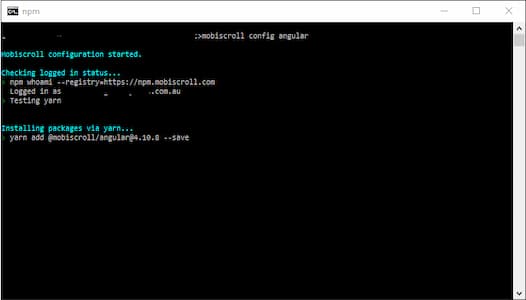
And then:
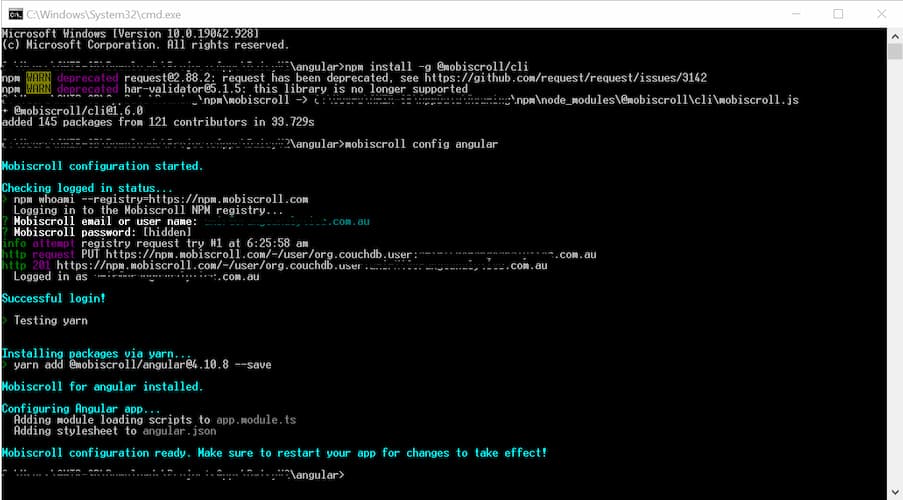
The following line added to the "package.json” file:
"@mobiscroll/angular”: "^4.10.8”
We had an issue with the installation. There were some comments in the "angular.json” file that caused the mobiscroll installation to stop, so we had to remove those comments first to continue with the installation:
Installing packages via yarn...
> yarn add @mobiscroll/angular@4.10.8 --save
Mobiscroll for angular installed.
Configuring Angular app...
  Adding module loading scripts to app.module.ts
  Adding stylesheet to angular.json
Could not install Mobiscroll.
SyntaxError: ****************************************************************\angular.json: Unexpected token / in JSON at position 1248
If the problem persists get in touch at support@mobiscroll.com
Implementation
Time Picker
The following code shows hoe we used the Time picker component:
HTML file:
<div class="form-group row">
    <div class="col-sm-12">
        <div class="input-group">
            <label for="preorderDate">{{"OrderSelectPreOrderTime" | localize}}</label>
            <mbsc-datetime [options]="compactSettings" #preorderDateTime="mobiscroll"></mbsc-datetime>
        </div>
    </div>
</div>
TS file:
...
import { mobiscroll, MbscDatetimeOptions } from '@mobiscroll/angular';
...
export class LocationServiceTimesModalComponent extends AppComponentBase {
...
compactSettings: MbscDatetimeOptions = {
        dateWheels: '|D d M|',
        theme: 'ios',
        themeVariant: 'light',
        display: 'inline',
        returnFormat: 'moment',
        steps: {
            minute: 10,
            zeroBased: true
        },
        touchUi: true,
        onChange: (event, inst) => {
            this.onPreorderDateChange(event, inst);
        }
    };
...
We needed to specify the valid and invalid Time slots. This was a requirement that Mobiscroll Time picker could handle nicely. I have included a part of the could to show how we implemented it:
setPreOrderValidTimeSlots() {
        let invalidTimesObj = new Array<any>();
        let validTimesObj = new Array<any>();
...
        //Calculate and set Invalid Time Slots
...
        //Calculate and set Valid Time Slots
...
        mobiscroll.settings.invalid = invalidTimesObj;
        mobiscroll.settings.valid = validTimesObj;
    }
...
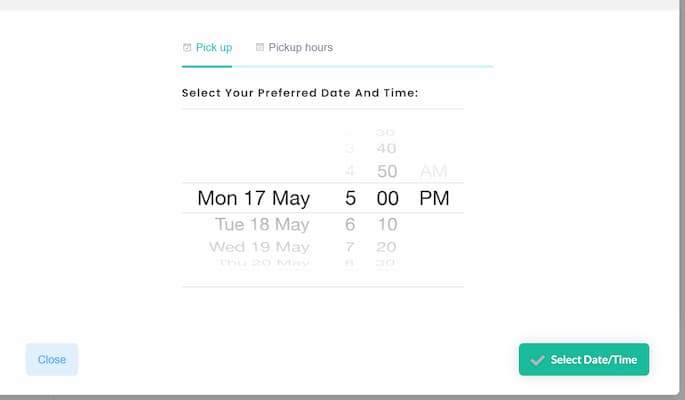
The following screenshot shows the result:
Stepper
For the stepper, we used as the following:
...
addremoveItem(event): void {
        this.cartItem.qty = event.target.value;
        this.totalNumberOfItems = event.target.value;
        this.calculateTotalPrice(this.itemPrice, this.totalNumberOfItems);
    }
...
And the screenshots, before adding the Mobiscroll Stepper:
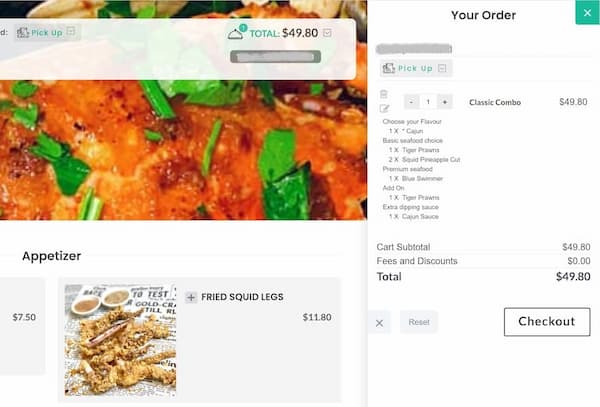
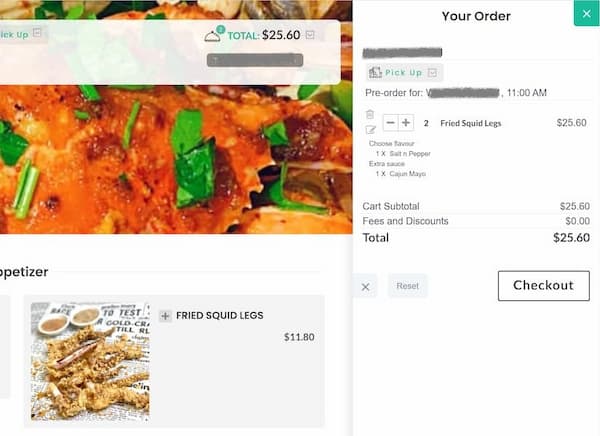
And after adding and using the Mobiscroll Stepper: